KVM Solutions
KVM Switches
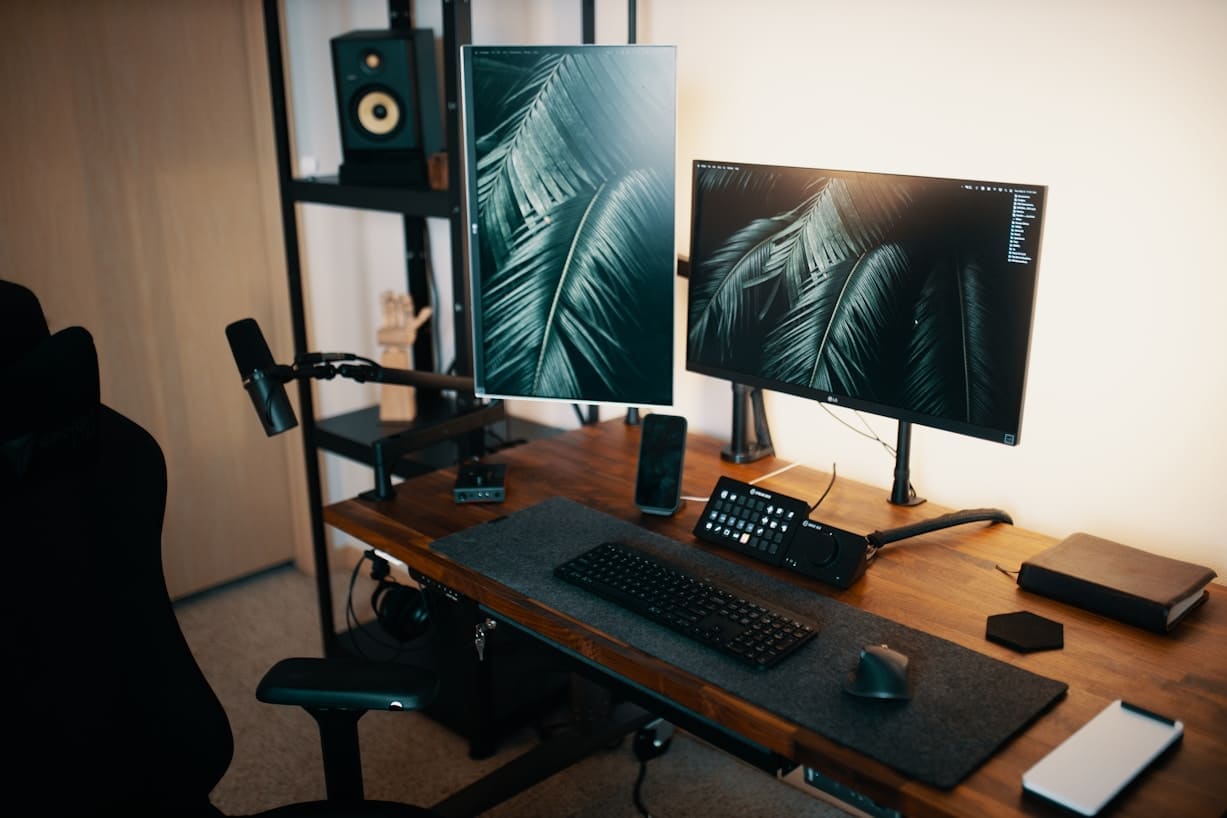
Whether you are managing a home workstation, a corporate server rack, or an enterprise-grade command center, we offer KVM switches that fit your needs to streamline operations and save space.
Get a QuoteWhat we offer
Desktop KVM Switches
Equip your desktop workstation with the ideal tool to seamlessly manage multiple computers, boosting your productivity while saving space.
Rackmount KVM Switches
Upgrade your server management system with Rackmount KVM switches, engineered for enterprise-grade performance, high port density, and peripheral sharing.
KVM over IP
Have full remote control and access to your workstation via network connection without having to be in front of your setup.
Matrix Switches
Allow truly flexible access and scalable architecture for your workstation with this high performance, large-scale KVM switch.
Recommended Technology
Desktop KVM Switches
Perfect for small offices, developers, and power users, optimize your workstation and maximize workflow with our selection of high performance Desktop KVM switches, with options for versatile compatibility and multi-platform support.
ATEN CS22U (2‑Port USB VGA Switch)
- Pro-level durability
- USB‑powered design with built‑in cables, no external power needed
- VGA/USB setups with up to 2048 × 1536 video resolution on Windows, Mac, Linux systems
IOGEAR GCS62HU (2‑Port HDMI USB Switch)
- Smooth HDMI switching at 1080p
- Flexible control options
- USB passthrough that ensures seamless use of high-performance gaming peripherals
AV Access DP1.4 Dual‑Monitor KVM Switch
- Quick switching via button, remote, or hotkeys
- Dual 8K monitor support with seamless PC switching
- 8K@60Hz, 4K@165Hz, HDR, VRR, and fast USB 3.0 sharing
Level1Techs Dual‑Monitor KVM Switch
- Seamless switching with EDID, USB 3.0, and audio pass-through
- Handles two systems with dual DisplayPort outputs at up to 4K @ 120 Hz or 8K @ 30 Hz
- Versatile USB passthrough supports high-speed peripherals seamlessly
Rackmount KVM Switches
For more demanding environments ranging from server rooms to enterprise data centers, our selection of Rackmount KVM switches offer scalable control and access, all from a single, centralized interface.
Aten KN2132VA 32-Port Rackmount KVM Switch
- Massive 32-Port Control
- Ultra HD Support – Crystal-clear video at 1920×1200 resolution for clarity
- Advanced user authentication and remote management capabilities
StarTech SV431DPUA 4-Port Rackmount KVM Switch
- USB peripheral sharing and audio switching
- Smooth video at 3840×2160 resolution with 4K UHD Support
- 4-port control with easy rackmount design for space-saving setups
Black Box ServSwitch CX KV0424A-R2
- Supports up to 4 users simultaneously
- Delivers video resolutions up to 1920×1200
- Utilizes CAT5, CAT5e, or CAT6 UTP cables for connecting to servers, reducing cable clutter and simplifying installation
Aten KN2116VA 16-Port Rackmount KVM Switch
- Manage up to 16 servers from one console
- Delivers crisp video up to 1920×1200 for clear monitoring and control
- Features advanced user authentication and flexible access options for secure operation
Matrix Switches
Ideal for high-performance environments ranging from broadcast control rooms to large-scale enterprise IT setups, upgrade your workplace productivity with Matrix KVM switch features like multi-user collaboration and massive scalability.
Aten KE Matrix KVM Switch KH2508A
- Daisy-chaining up to 15 additional KH2508A switches for more control
- Dual Console Operation that can control up to 8 directly connected computers
- Supports video resolutions up to 1920 x 1200 @60Hz for up to 30 meters
Black Box DKM FX KVM Matrix Switch Chassis
- Delivers digital resolutions up to 4K at 60Hz
- Modular Scalability--supports up to 576 I/O ports in a single chassis
- Handles a variety of signals including DisplayPort, HDMI, DVI, audio, etx. providing versatile connectivity options
Adderlink Infinity IP KVM Matrix 4001
- Scalable over 1GbE/10GbE IP networks
- Supports up to 5K@60Hz pixel-perfect video
- Centralized management for multi-site, multi-user environments via ADDERLink Infinity Manager (AIM)
Aten VM3909H HDMI-HDBase-Lite Matrix Switch
- Supports 4K video over Cat6 up to 70m
- Flexible 9x9 Switching--route any of 9 HDMI sources to 9 HDBaseT-Lite outputs
- Manage via Ethernet, RS-232, or pushbutton, streamlined control for any environment


Want to learn more?
Let’s design the room around the way you work
Tell us about the space and we’ll put an AV specialist on it — no obligation, no pricing games.
Frequently Asked Questions
Got questions about system setup, video displays, or AV equipment requirements?
Find expert answers on everything from essential device checklists and video conferencing equipment costs to choosing between projectors vs. displays and configuring Microsoft Teams Rooms. Dive in to learn how to build a reliable, high-performance workspace.
What’s a KVM Extender and how is it used?
A KVM (Keyboard, Video, Mouse) Extender is a device that allows you to control a computer, or multiple computers, from a remote location, using a keyboard, video monitor, and mouse, even when the computer is hundreds of feet away. The device does this by transmitting signals over long-distance cabling like Cat5/Cat6 Ethernet or fiber optics cabling, allowing operations to take place almost anywhere.
As a result, the KVM Extender has many use cases: Server rooms: keeps noisy, heat-producing equipment away from workspaces Broadcasting: operate editing or playback systems from a quiet control room Industrial facilities: keeps sensitive systems protected and clean in a safe zone
Interested in optimizing your workspace efficiency with KVM Extenders? Explore our products to find your best fit.
What is a KVM setup good for? Why should I have a KVM setup?
A KVM setup allows administrators to control multiple computers or servers from a single keyboard, video monitor, and mouse, which has many advantages, especially in workplaces like data centers.
Some key advantages include: Switch easily between systems with the push of a button Save space as one monitor, keyboard, and mouse is needed Lower hardware costs with no need for peripherals for every system Boost productivity with faster workflows Flexible deployment as KVM works with macOS, Windows, Linux, etc.
Ready to accelerate your team’s performance? Connect with us to find the best setup for you.
What is the difference between a KVM switch and a KVM extender?
Though often used together, a KVM switch and KVM extender are designed for different functions within a KVM configuration.
A KVM switch allows the user to manage multiple computers or servers from a single location, mainly used for consolidating control. In contrast, a KVM extender allows the user to access one system from a remote location, enabling long-distance control.
While they serve different purposes, both devices can be integrated into a complete KVM system. With Princeton Pro AV Services, you don’t have to worry about the technical differences — just enjoy the seamless performance and convenience of a fully optimized setup. Contact us for more information on a setup perfectly tailored to you and your team’s needs,
What is the difference between a KVM switch and a serial console?
The key differences between a KVM switch and a serial console are the access types and use cases.
A KVM switch lets the user control multiple servers or computers from a single keyboard, monitor, and mouse, making it best for when the user needs full, visual access like performing tasks that require a graphical interface (GUI).
A serial console allows the user to access and manage network devices or systems that have no monitors via serial ports, so It’s best for managing networking hardware (Cisco routers/switches) and troubleshooting when network is unresponsive.
Explore more specific KVM switches for your workstation. Have more questions? Contact us for more information.
How do I connect and configure a KVM switch to my existing computer setup?
Connecting and configuring a KVM switch depends on a few key factors, including how many systems you plan to manage and what type of KVM hardware you’re using. Some considerations before you setup: How many computers or servers you need to control? Desktop or Rackmount KVM switch? What video and USB/PS2 connections do your systems support? At Princeton Pro AV, our KVM experts handle every step, from selecting the right hardware to full configuration and deployment, so you can focus on what matters most: running your systems efficiently. Need help choosing the right KVM switch or setting it up? Contact us anytime for expert support.
Which KVM switch, console, and extender should I choose?
Which KVM setup you need depends on your specific environment, how many systems you are managing, and how you need access to them. Smaller offices with maximum of 4 computers at a desk might need a desktop KVM switch, whereas a larger facility holding over 10 servers might need a rackmount KVM switch. These considerations also apply to chooding the best console and extender for your work environment.
Explore our products to get a full understanding of what setup you might need for your workspace.
Already have an idea, and are looking for more details? Consult with us to get the full picture of what you might need and how to achieve your optimal workstation.
Can KVM Hardware be used with Windows and macOS operating systems?
Yes, most KVM hardware is designed to be compatible with Windows, macOS, and even Linux systems.
KVM Switches: typically work at the hardware level by emulating standard USB keyboard and mouse inputs and supporting common video signals (HDMI, DisplayPort, DVI, VGA), making them compatible with Windows, macOS, Linux, etc.
KVM Extenders: simply extend keyboard, video monitor, and mouse signals over long distances via network cabling, making them platform-independent and work seamlessly with any system that supports USB and video output.
KVM Consoles: provide integrated access through built-in monitor, keyboard, monitor, and mouse, which is also designed to work across different operating systems.
Request a Quote
Need expert help? We’ve got you covered — from strategy to setup.
Fill out the form to schedule a FREE consultation with one of our AV experts. Whether you need conferencing, control, KVM, AV-over-IP, or outdoor tech solutions — we’ve got you covered. We’ll connect you with a specialist to design the right setup for your space. A member of our team will reach out to you soon.